![Bluestone_PIM_white_logo_RBB-3.png]](https://help.bluestonepim.com/hs-fs/hubfs/Bluestone_PIM_white_logo_RBB-3.png?height=50&name=Bluestone_PIM_white_logo_RBB-3.png)
The Digital product passport plugin needs to be activated for your organization. And you must be given explicit permission to utilize the feature.
Managed role having this permission: Plugin admin
View the passport for a product Edit passport data
QR code and passport link Making DPP data available to integrations
Overview
Managing DPP compliance just got easier! Bluestone DPP lets you prepare the product data you already manage in Bluestone PIM for its Digital Product Passport (DPP). A Digital Product Passport is a structured set of information about a product, defined by regulation for a given product type.
Instead of building a second system, you connect the passport requirements to your existing PIM attributes. You can see what is complete, spot what is missing, and fix it in place, from one source of truth.
Passport requirements come as ready-made templates for different product types, for example batteries and textiles. Each template defines which fields are expected, which are required, how they are grouped and who may access each value.
Note: Bluestone PIM currently supports DPPs for textiles and batteries. We are actively expanding support to cover additional product types.
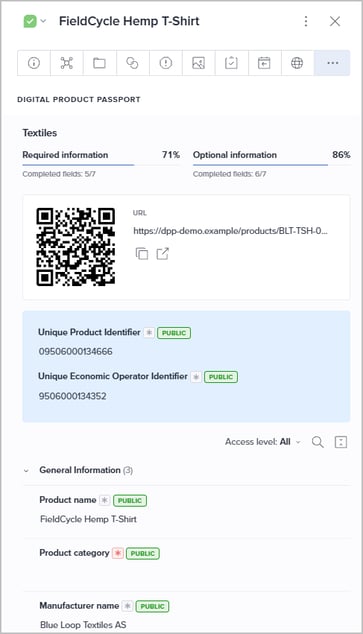
Making a product DPP-ready
The following steps are performed to make a DPP ready for a product:
-
Install a DPP template for your organization. This creates a DPP product group for your organization.
-
Map the DPP fields in that group to your existing PIM attributes.
-
Link the DPP product group to a PIM category in your DPP catalog. The category decides which products the setup applies to.
-
Assign your products to that category through the normal PIM category structure.
-
Open the Digital Product Passport tab on a product. It recognizes the product group and shows the relevant fields with their current values.
-
Complete or update the information directly in the tab.
Steps 1 to 3 are the one-time setup and are performed by Bluestone for your organization. Steps 4 to 6 are part of everyday work in Bluestone PIM.
Key concepts
DPP is built from a few concepts that connect regulation-defined requirements to your own product data.
|
Concept |
What it means |
|---|---|
|
DPP template |
A ready-made, read-only definition of the passport for a product type. Predefined templates, such as batteries and textiles, specify which fields are expected, which are required, how fields are grouped and who may access each value. Templates are identical for all organizations. |
|
DPP product group |
The copy of a template that your organization installs. It holds your own attribute mappings and category link. |
|
DPP field |
A single piece of information required or recommended for the passport, for example "Manufacturer name". |
|
DPP field group |
A named, ordered section of related fields, for example "General Information". |
|
Attribute mapping |
The link between a DPP field and the PIM attribute that holds its value. Mappings use the attribute number, so they can be moved between PIM environments. |
|
DPP catalog |
A PIM catalog dedicated to DPP, with one category per DPP product group. |
|
Access level |
Who may access a field's value in the published passport: Public, Authorized or Internal. |
|
Applicability |
The conditions under which a field is relevant, for example only during use of the product. |
Applicability is informational. All fields are always shown and counted, and their conditions are displayed next to them.
Getting started
Bluestone configures DPP for your organization based on your input, so you do not set anything up yourself. To get started, share the following with Bluestone:
-
Product types. Which products need a passport, so Bluestone can install the matching template.
-
Attribute mapping. Which existing PIM attributes hold the value for each DPP field.
-
DPP catalog and categories. The PIM catalog dedicated to DPP and the category that represents each DPP product group.
-
DPP page URL and QR codes. Which attribute holds the DPP page URL, and whether you use custom QR images labelled DPP-QR.
With this input, Bluestone installs the template, maps the fields to your PIM attributes and links each DPP product group to its category.
Once setup is complete, assign your products to the linked category in the normal PIM category structure. From then on, the DPP tab shows the matching passport for those products.
View the passport for a product
The Digital Product Passport tab brings all required and optional passport information for a product into one place. It is a dedicated tab in the product details panel and is available on every product.
Opening the tab gives you a live passport view: it resolves the product's category to its DPP group, then combines the field definitions with the product's current attribute values. Nothing is duplicated, because the tab reads and writes the PIM data you already maintain.
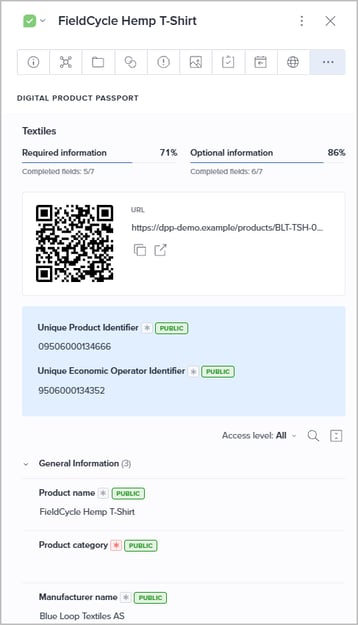
In the tab you will find:
-
Passport type
The product group name is shown at the top, for example "Textiles". -
Completeness at a glance
A real-time summary of completed fields and scores helps you track passport readiness:- Required information
Indicates how complete a product's passport is based on mandatory regulatory fields. This score must reach 100% before the passport is compliant and ready for publication. - Optional information
Indicates how rich and detailed the passport is based on additional, non-mandatory attributes.
- Required information
-
QR code and link
When a DPP page URL is available, the QR code and link are presented. Please see the QR code and page link section for more information. -
Identifiers
The Unique Product Identifier (the code that identifies the product model, batch, or individual item) and the Unique Economic Operator Identifier (the code for the legal entity responsible for the product) are presented in a separate section. - Field sections
The remaining DPP fields are grouped into sections, in the order defined by the template.- Hover a field name to see which attribute it is mapped to.
- The current value from the mapped PIM attribute is presented.
- Required fields are marked with an asterisk icon. This flag turns red when information is missing.
- The access level - Public, Authorized or Internal - is presented in a badge.
To work with larger passports, the following functions are available in the fields header:
-
Access level filter
Show only Public, Authorized or Internal fields. -
Search
Find a field quickly. -
Collapse and expand
Focus on the sections you are working on.
When no passport applies
The tab stays available on every product. If the product is not assigned to a DPP category, it shows the message "This product is not assigned to a DPP category" and explains that you need to assign the product to a DPP category to use the tab.
When the setup is ambiguous
If more than one linked DPP group matches the product, the tab reports the configuration as ambiguous. It does not choose a group automatically, so you can correct the category setup first.
Edit passport data
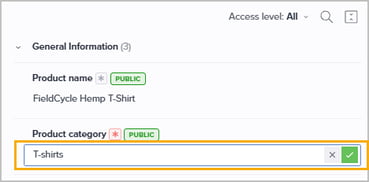
You can fix missing or incorrect passport data directly in the tab, without navigating to the product's attribute view. There is no separate copy of your product data. The tab reads and writes the same attribute values you already maintain in PIM, so there is nothing to keep in sync.
Simply click the input field and enter the relevant value:
QR code and passport link
When a DPP page URL is available, the tab displays it as a clickable link alongside its QR code. The URL comes from the PIM attribute mapped to the field that the template marks as the DPP page link, which sits in the identification section of the passport. You maintain that value like any other attribute.
The QR code is displayed using one of two methods:
a) Custom QR image
If the product has an image asset labelled "DPP-QR", the tab shows that image. Use this for branded QR codes, for example with a logo or specific colors, e.g. featuring logos or specific brand colors.
b) Auto-generated QR code
If no custom asset exists, a QR code is automatically generated directly from the DPP page URL.
Note: If neither a URL nor a DPP-QR asset is present, the QR section remains hidden. The DPP tab only stores and displays the URL reference; it does not generate or host the external DPP web page itself.
Making DPP data available to integrations
Once a product is published, the mapped DPP structure is exposed as category metadata via PAPI. This makes the same passport shape available to integrations and downstream systems, including the DPP Service Provider chosen by the Economic Operator.
Note: Bluestone PIM is not itself a DPP Service Provider. It makes your governed DPP data available so any accredited provider can consume it.
The metadata is written to the linked PIM category under the provider number bluestone-dpp and travels through the normal sync flow to PAPI, so no extra publishing step is needed.
The metadata contains:
-
The DPP product group and template version.
-
The field groups, in the same order as in the template.
-
For each mapped field: its name, data type, whether it is required, its access level, any applicability conditions and the PIM attribute number that holds the value.
Only mapped fields are included. The Digital Product Passport tab does not read this metadata itself. It works from the DPP service and the product's PIM attribute values.
Current boundaries
Bluestone DPP currently focuses on structuring and maintaining DPP information inside Bluestone PIM. The following are not yet supported:
-
Self-service setup
Bluestone performs the setup. There is no user interface for customers to install templates, configure mappings or link categories as of now. -
Public DPP page
Generating or hosting a public Digital Product Passport page is not included. The page URL can be stored and displayed in PIM, but the external page is outside the scope of Bluestone PIM DPP. -
External publication
Pushing passport data to an external DPP provider or registry is not supported. -
Translated field names
DPP field names are regulation-defined English strings. Localization is planned for a later version.