![Bluestone_PIM_white_logo_RBB-3.png]](https://help.bluestonepim.com/hs-fs/hubfs/Bluestone_PIM_white_logo_RBB-3.png?height=50&name=Bluestone_PIM_white_logo_RBB-3.png)
Quick reference: choosing the right API
Overview
Bluestone PIM provides two specialized APIs designed to handle different stages of the product information lifecycle: configuring and maintaining your catalog internally, and distributing published product data to external platforms at scale.
Depending on your integration architecture and whether your system needs to push updates or consume published catalog data, you will interact with one or both of these interfaces:
-
The Management API (MAPI): Designed for creating, updating, and structuring data within the platform. MAPI serves as the administrative interface for managing products, categories, custom attributes, relations, and system configurations.
-
The Public API (PAPI): Optimized for high-throughput, low-latency data consumption. PAPI acts as a read-only distribution layer that serves synchronized, published product data to downstream consumers, marketplaces, and front-end channels.
To illustrate how these APIs are typically used in practice, review the common scenarios and examples below.
Flowchart conventions and symbols
Flowcharts throughout this guide use standardized symbols to illustrate integration architecture, triggers, and data movement:

- Event or control: Represents a workflow trigger, user action, business rule, or decision point that initiates or directs the process.
- API call: Indicates an active endpoint interaction or payload exchange with MAPI or PAPI.
- Done or stored: Signifies a completed operation, successful state transition, or data record saved/persisted in the system.
- Flow: Denotes the directional path and logical sequence between process steps.
The Management API (MAPI)
The Bluestone PIM Management API (MAPI) is a comprehensive set of endpoints designed for creating, updating, and managing your product data and configurations within the platform. Please see Get started with Management API for more information.
Create or update products
When syncing catalog items from an ERP, PIM, or source database into Bluestone PIM, integrations follow an upsert pattern: authenticating, checking for product existence by number, staging the product record, and enriching it with attributes and categories.
Integration workflow:
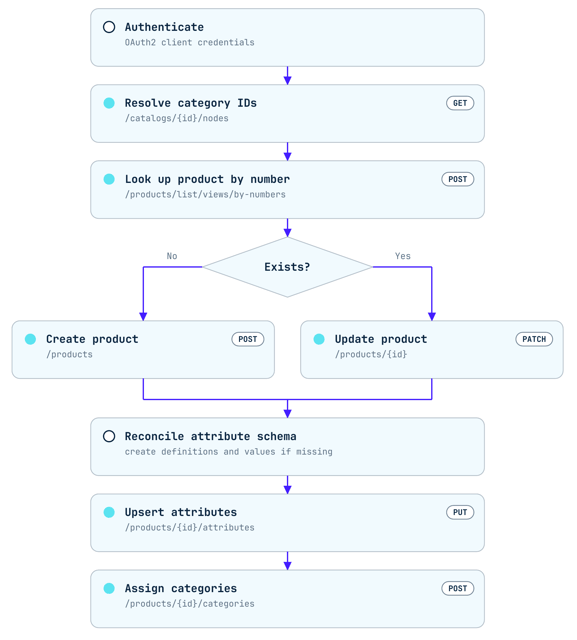
Note: Step 1 (Authentication) and Step 2 (Category resolution) can be cached; repeat steps 3 through 7 for every individual product you process.
Bulk update product attributes by numbers
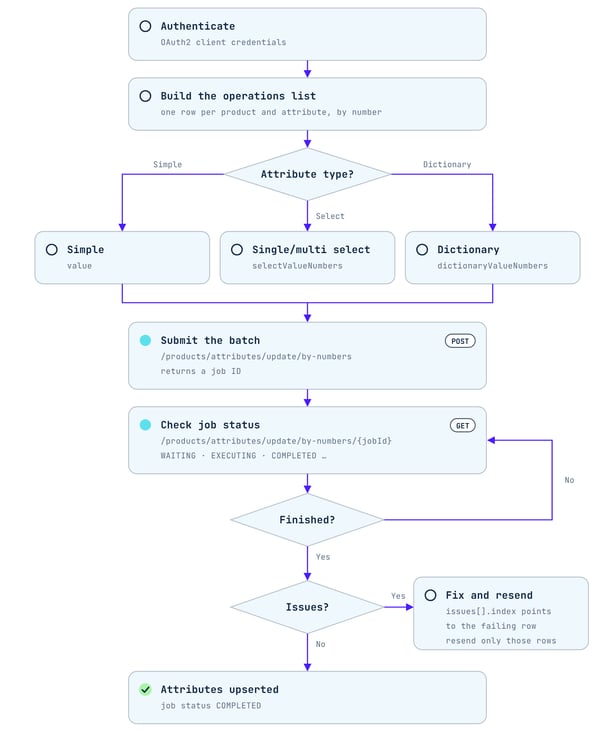
To set attribute values on many products in a single request. You identify everything by number (product number, attribute definition number, value number) rather than by internal ID, so there’s no need to look up IDs first. “Upsert” means the attribute is added if the product doesn’t have it yet, and updated if it does.
Note! Make sure every definition and select or dictionary value you reference already exists before you run it.
Follow these steps:
Check if an attribute definition exists
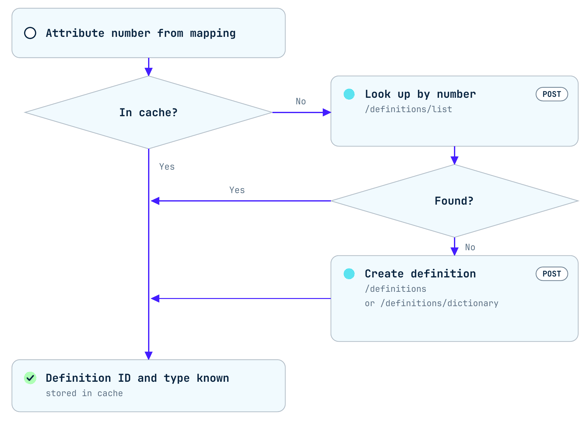
To minimize unnecessary API calls and prevent duplicate entries, integrations should check a local cache before querying or creating attribute definitions in your organization.
Follow this workflow when mapping attributes from your source system:
Check if a Single- or Multiselect value exists
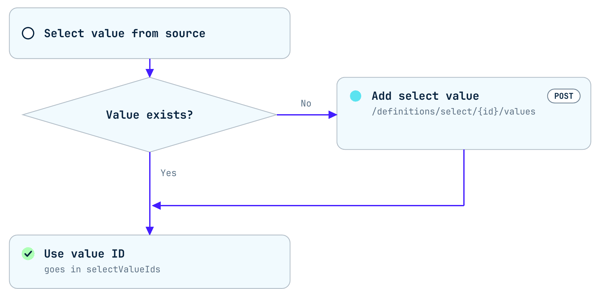
For single- and multi-select attributes, the attribute definition payload already lists all predefined values, meaning no additional lookup API call is needed to check availability.
Follow this workflow when processing single- and multi-select attribute values from your source system:
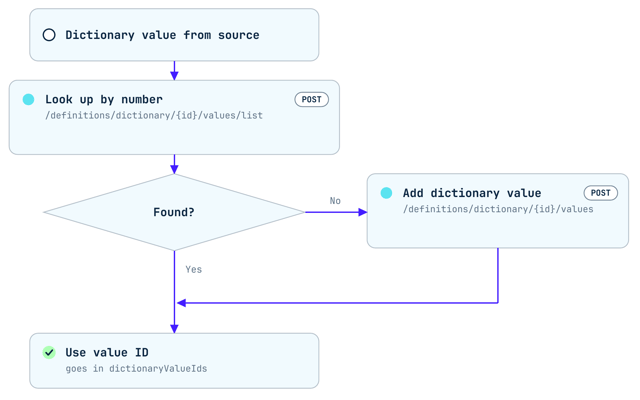
Check if a Dictionary value exists
Unlike standard select attributes where values are already listed in the definition payload, dictionary attributes can contain large datasets and require a dedicated query to check for existing entries.
Follow this workflow when processing dictionary attribute values from your source system:
The Public API (PAPI)
The Bluestone PIM Public API (PAPI) is a set of endpoints optimized for serving large amounts of data to many external systems. Please see Get started with Public API for more information.
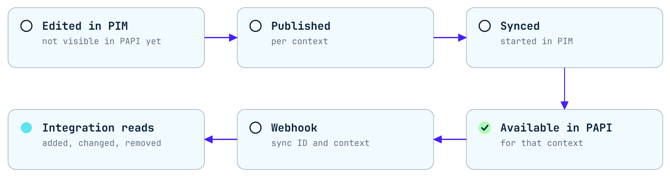
How products are made available in PAPI
For product data to be accessible via PAPI, it must move through a structured lifecycle from initial authoring in the PIM to downstream delivery.
The process follows six key stages:
Fetch all published products (initial full load)
To perform an initial data load or rebuild a local catalog cache, integrations must retrieve the full published product catalog per context before transitioning to incremental delta updates.
Follow this workflow to complete the initial load:
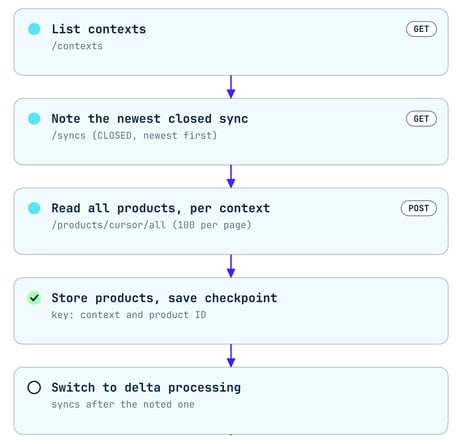
Note: Repeat the three read steps for every context your integration consumes.
Fetch delta changes from a sync
To keep downstream systems synchronized without re-fetching full datasets, integrations can query delta changes generated by consecutive sync events within a specific context.
Important: Always process sync events in chronological order (oldest first / FIFO). Processing syncs out of order can cause race conditions or result in older states overwriting more recent product updates.
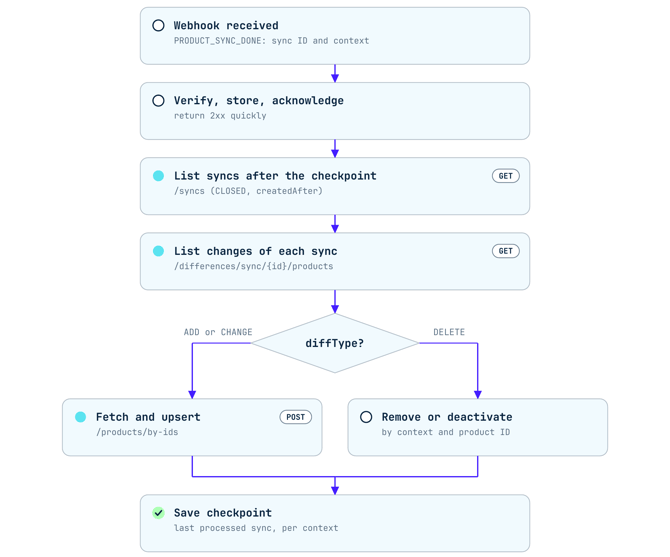
Note: Repeat this sequence for every sync record occurring after the checkpoint until the queue is clear.
Quick reference: choosing the right API
Choosing the correct API depends on your integration’s direction of data flow, latency requirements, and operational role. Use the comparison below to quickly identify whether your service should connect to the administrative layer (MAPI) or the high-throughput distribution layer (PAPI).
| Capability / Requirement | Management API (MAPI) | Public API (PAPI) |
| Primary purpose | Internal administration, data enrichment, data governance | High-volume external distribution & consumption |
| Allowed operations | GET, POST, PUT, DELETE (Full CRUD) | GET (Read-only) |
| Data state served | Draft, working, and staged product states | Validated and published data only |
| Throughput & latency | Optimized for structured write transactions | Optimized for low-latency, edge-cached reads |
| Primary consumers | ERP, CRM, DAM, PIM admin tools, automated import jobs | Webshops, mobile apps, marketplaces, print/catalog engines |
Use the Docs MCP server to help!
The Bluestone PIM API has hundreds of endpoints, and several of them can do similar jobs in different ways. Use the Bluestone PIM Docs MCP server to let an AI coding tool such as Claude, Cursor or VS Code search the API reference for you. It can help compare the options and tell you which endpoint does the job you want in the fewest calls.
Note: The Docs MCP server reads the API reference only. Connecting to it doesn’t give access to your Bluestone PIM data.
Connect
Add the endpoint for your environment to your AI tool’s MCP settings. No login is needed.
| Environment | MCP endpoint |
|---|---|
| Production EU | https://docs.api.bluestonepim.com/mcp |
| Production US | https://docs.api-us.bluestonepim.com/mcp |
| Test | https://docs.api.test.bluestonepim.com/mcp |
See Use the Bluestone PIM Docs MCP server for setup steps for each tool.
Tips!
- Describe the job, not the endpoint. Say what you’re syncing, roughly how many records, and how often. The best endpoint for 50 products is often not the best one for 50,000.
- Ask for a comparison. Asking “what are my options and which needs the fewest calls?” brings out bulk and batch endpoints you might not have known about.
- Ask for the limits. Page sizes and batch limits are in the API reference, and they decide how many calls your integration makes.
Example scenarios
When you know what you want to do but not which endpoint does it:
“I need to add the same label to 2,000 products. Which Bluestone PIM endpoint does this in the fewest calls? Show me the request body.”
Help optimising your existing flows:
“I’m syncing 20,000 products from our ERP into Bluestone PIM every night. Review this flow: authenticate, look up each product by number, create or update it, upsert attributes, assign categories. Where can I batch calls or cut payload size? Include the batch limits for each endpoint.”
Next steps
Build data models
Follow the Get started with Management API guide to generate API keys, configure OAuth scopes, and make your first CRUD calls.
Build channel feeds
Follow the Get started with Public API guide to query published catalogs and configure read tokens.
Interactive testing
Explore request schemas, sample payloads, and interactive sandboxes in the Bluestone PIM API Reference.