![Bluestone_PIM_white_logo_RBB-3.png]](https://help.bluestonepim.com/hs-fs/hubfs/Bluestone_PIM_white_logo_RBB-3.png?height=50&name=Bluestone_PIM_white_logo_RBB-3.png)
You must be given explicit permission to perform translations.
Managed roles having access: System admin, PIM admin and PIM write.
Attribute groups
Attribute names Attribute values
Introduction
The Translations module is where you manage translations of attribute names and dictionary attribute values across your organization. Administrators can work across multiple languages and contexts from a single page, with filtering to quickly identify any missing translations.
Note: We are continuing to centralize translation workflows by migrating more features from the deprecated Languages page into the new UI.
More translation pages will migrate in upcoming releases!
The Translations module can be found in the main navigation bar:
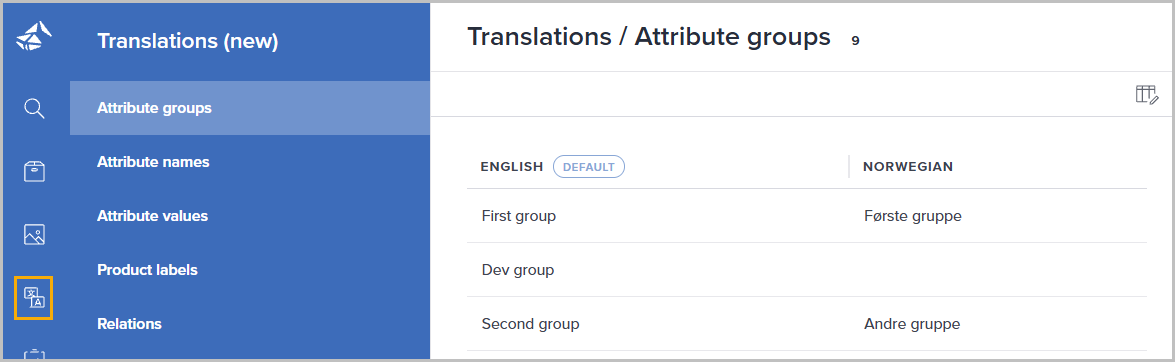
Please see the following sections for details.
Translate attribute groups
Translate the attribute group names into one or more contexts/languages directly from this page.
Do the following:
- Navigate to Translations | Attribute groups. The following page is presented:
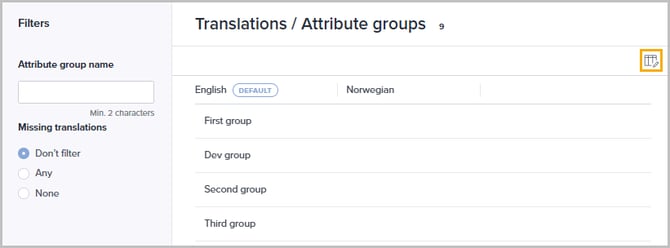
- Click the column icon (Column setup) in the upper right corner to select which contexts/languages to add/update translations for:
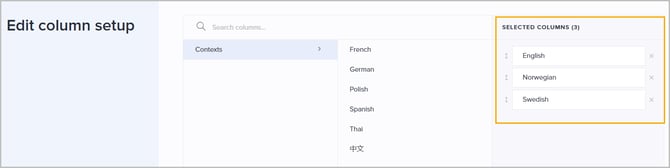
Click Save when you are done. - Use the Filters in the left panel for easier locating the relevant group:
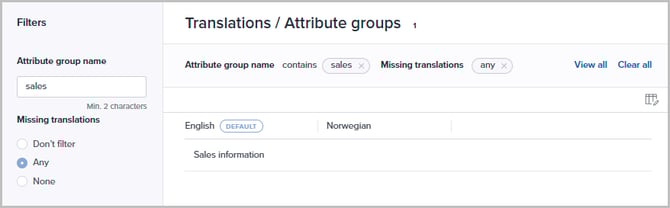
You can filter by:- Attribute group name
Enter at least two characters to narrow down the list of groups. - Missing translations
Select Any to only list groups missing one/more translations.
Select None to only list groups not missing any translations.
- Attribute group name
- Optionally click View all above the grid to get an expanded presentation of all currently applied filter criteria. Click Clear all to remove all currently applied filter criteria.
- Click the relevant input field in the grid to add/update the group name for a given context/language:
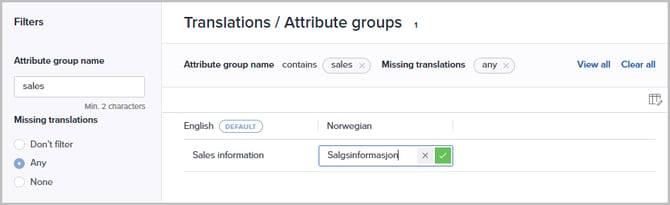
- Press [Enter] or click the green checkmark icon to save the value.
Translate attribute names
Translate the attribute names into one or more contexts/languages directly from this page.
Do the following:
- Navigate to Translations | Attribute names. The following page is presented:
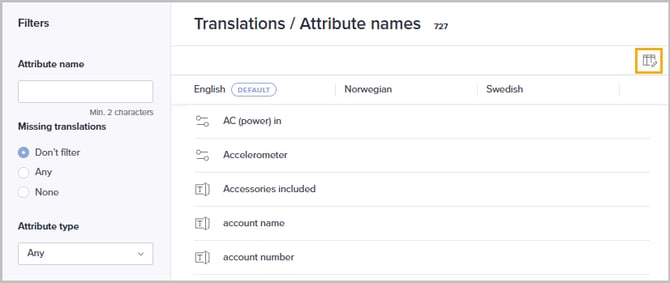
- Click the column icon (Column setup) in the upper right corner to select which contexts/languages to add/update translations for:
Click Save when you are done. - Use the Filters in the left panel for easier locating the relevant attribute:
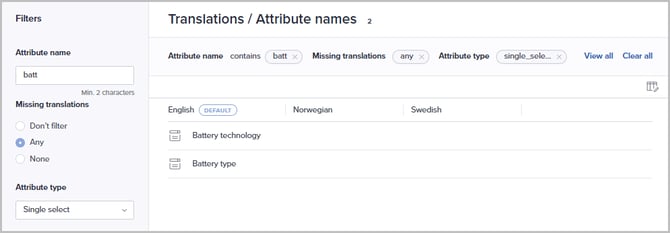
You can filter by:- Attribute value
Enter at least two characters to narrow down the list of attributes. - Missing translations
Select Any to only list values missing one/more translations.
Select None to only list values not missing any translations. - Attribute type
Select the relevant attribute type from the dropdown list.
- Attribute value
- Optionally click View all above the grid to get an expanded presentation of all currently applied filter criteria. Click Clear all to remove all currently applied filter criteria.
- Click the relevant input field in the grid to add/update the attribute name for a given context/language:
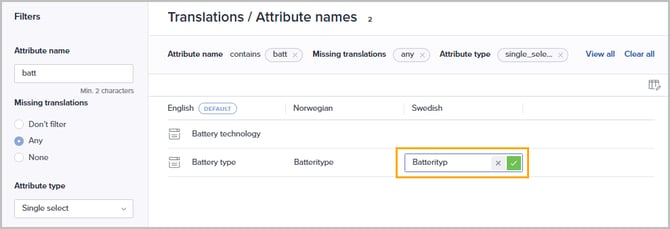
- Press [Enter] or click the green checkmark icon to save the value.
Translate attribute values
Translate the values of your attributes into one or more contexts/languages directly from this page.
Do the following:
-
Navigate to Translations | Attribute values. The following page is presented:
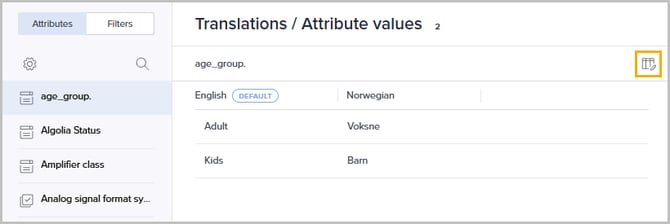
- By clicking the cogwheel button (Settings) in the left panel, you can select to:
- Manage attribute definitions
Will route you to the Attributes page for viewing/managing definitions. - Show count of missing translations
Will present the number of missing translations per attribute in the left panel, taking the selected contexts into account.
- Manage attribute definitions
- Click the column icon (Column setup) in the upper right corner to select which contexts/languages to add/update translations for:
Click Save when you are done. - Select the relevant attribute in the Attributes section. Use the Search field to filter by attribute name if needed:
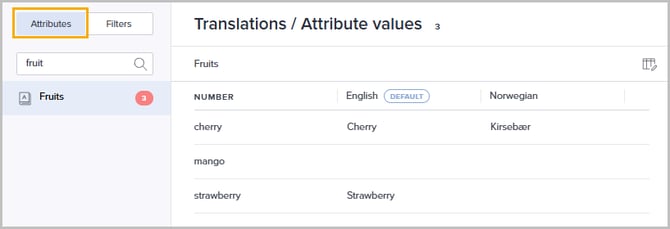
- Optionally use Filters to locate relevant values:
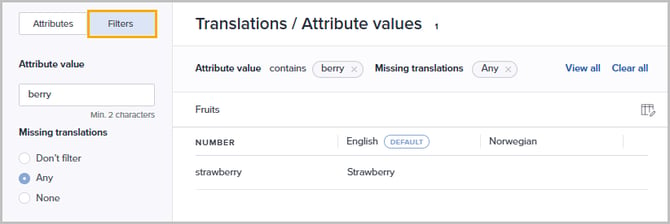
You can filter by:- Attribute value
Enter at least two characters to narrow down the list of values. - Missing translations
Select Any to only list values missing one/more translations.
Select None to only list values not missing any translations.
- Attribute value
- Optionally click View all above the grid to get an expanded presentation of all currently applied filter criteria. Click Clear all to remove all currently applied filter criteria.
- Click the relevant input field in the grid to add/update the value:
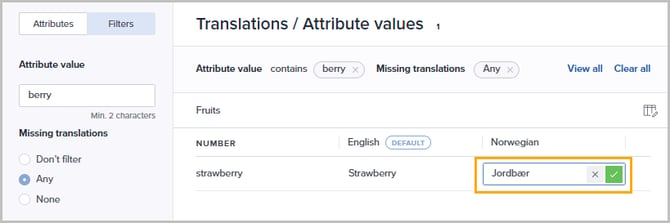
- Press [Enter] or click the green checkmark icon to save the value.
Translate product labels
Translate your product labels into one or more contexts/languages directly from this page.
Do the following:
-
Navigate to Translations | Product labels. The following page is presented:
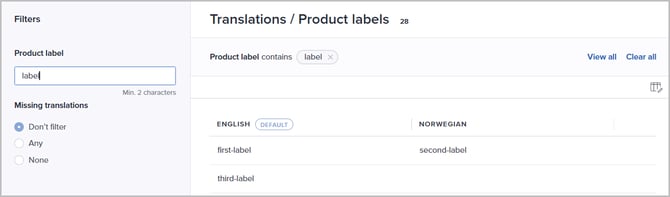
- Click the column icon (Column setup) in the upper right corner to select which contexts/languages to add/update translations for:
Click Save when you are done. - Optionally use the Filters in the left panel to locate relevant labels. You can filter by:
- Product label
Enter at least two characters to narrow down the list of labels. - Missing translations
Select Any to only list values missing one/more translations.
Select None to only list values not missing any translations.
- Product label
- Optionally click View all above the grid to get an expanded presentation of all currently applied filter criteria. Click Clear all to remove all currently applied filter criteria.
- Click the relevant input field in the grid to add/update the value:
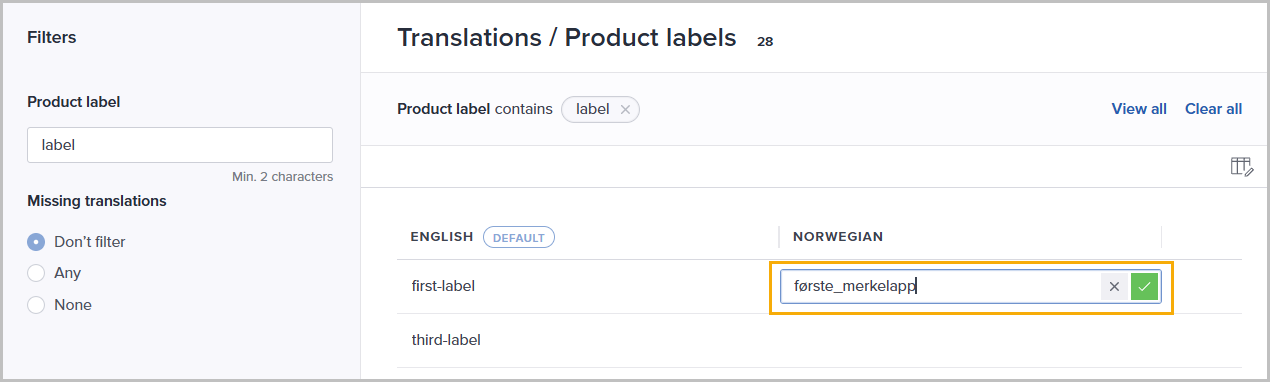
- Press [Enter] or click the green checkmark icon to save the value.
Translate relations
Translate the values of your attributes into one or more contexts/languages directly from this page.
Do the following:
-
Navigate to Translations | Relations. The following page is presented:
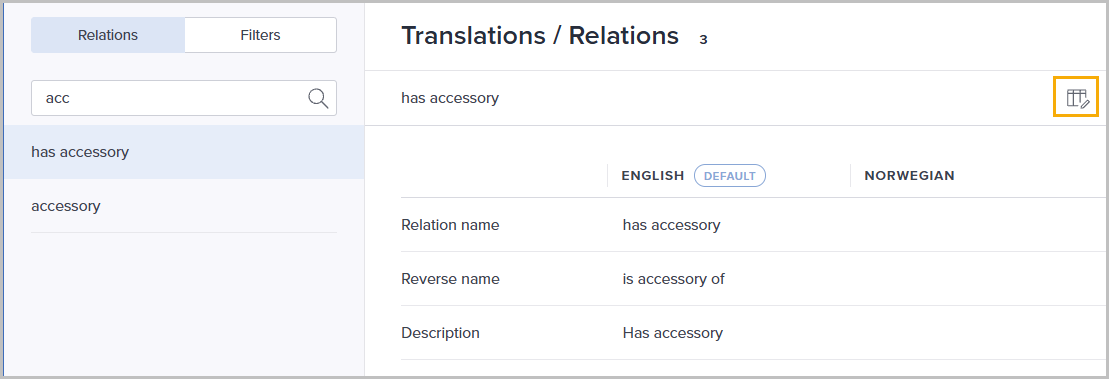
- Click the column icon (Column setup) in the upper right corner to select which contexts/languages to add/update translations for:
Click Save when you are done. - Select the relevant relation in the Relations section. Use the Search field to filter by relation name if needed:
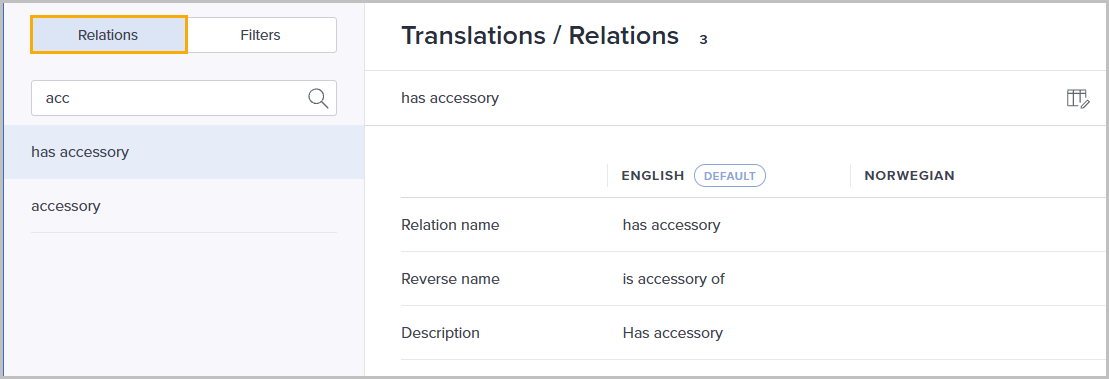
- Optionally use Filters to locate relevant relations:
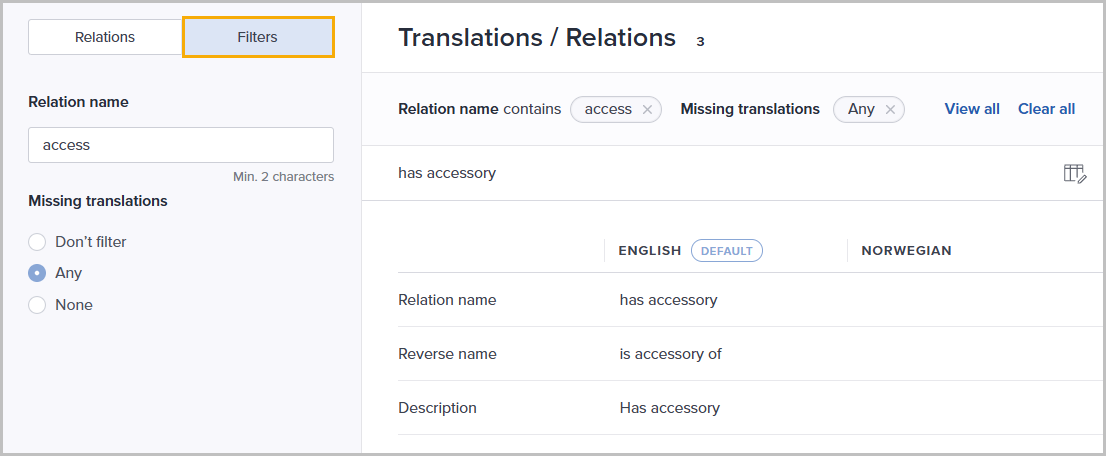
You can filter by:- Relation name
Enter at least two characters to narrow down the list of relations. - Missing translations
Select Any to only list values missing one/more translations.
Select None to only list values not missing any translations.
- Relation name
- Optionally click View all above the grid to get an expanded presentation of all currently applied filter criteria. Click Clear all to remove all currently applied filter criteria.
- Click the relevant input field in the grid to add/update the value:
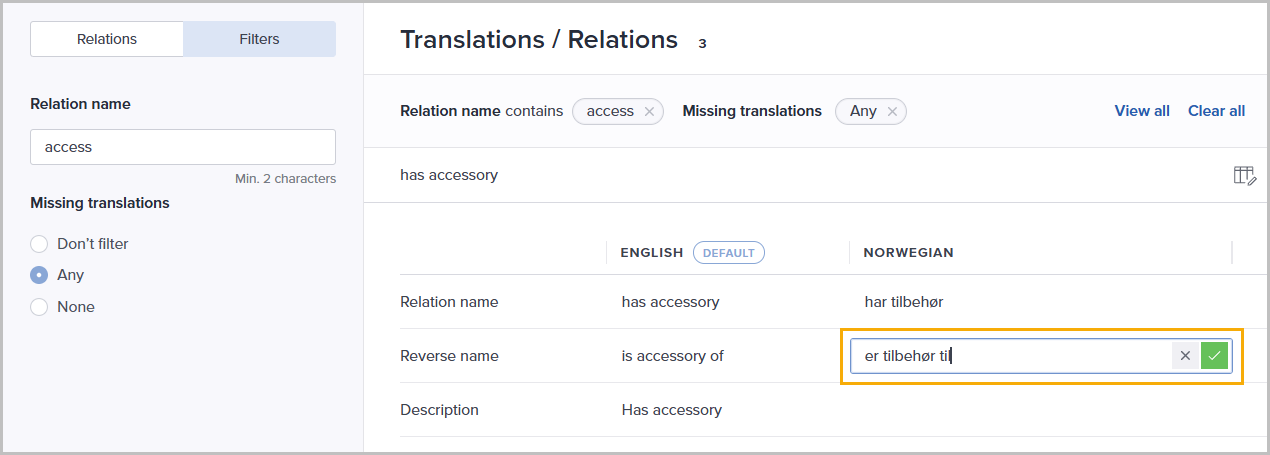
- Press [Enter] or click the green checkmark icon to save the value.