![Bluestone_PIM_white_logo_RBB-3.png]](https://help.bluestonepim.com/hs-fs/hubfs/Bluestone_PIM_white_logo_RBB-3.png?height=50&name=Bluestone_PIM_white_logo_RBB-3.png)
To use the AI agent, you must be explicitly granted access by your system administrator.
To configure the AI agent for your organization, you must be granted administration access.
Managed roles having access: System admin and PIM admin.
Introduction
Before you get started
AI agent settings
Trial or custom mode LLM configuration Tools configuration
Using the AI agent
Start a conversation Find relevant products Get guidance Execute operations
Activate or deactivate AI tools
Introduction
The AI agent is a conversational tool for data discovery and product management, designed to reduce manual effort. It lets you interact with Bluestone PIM using natural language - turning everyday questions into powerful queries and accurate answers.
Context-aware by design, it knows where you are in the application, what permissions you have, and which actions are relevant to you.
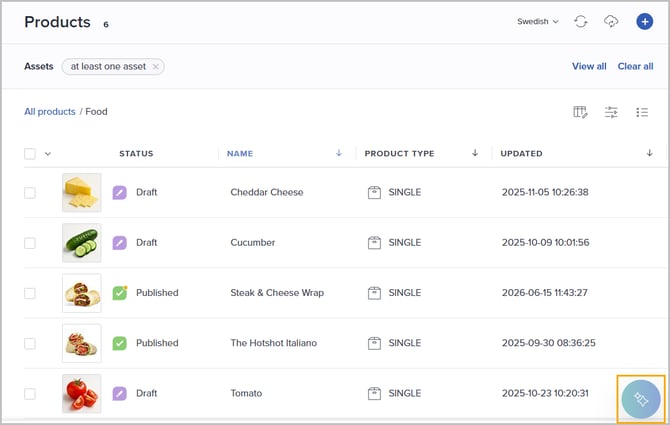
The AI agent is available to all organizations and connected to your Bluestone PIM subscription by default - no setup required. Once access has been granted, the AI agent appears in the lower right corner of the user's workspace:
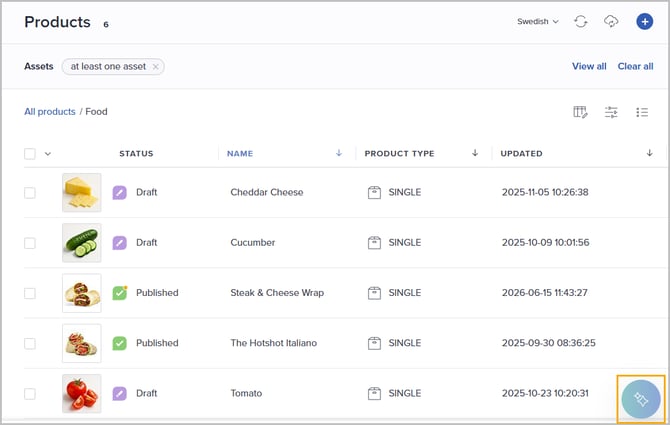
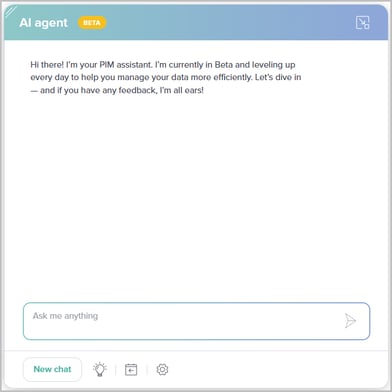
Clicking the agent opens the chat window. See Using the AI agent for details on how to configure and interact with it.
The system supports your organization to use its own LLM provider and API key. This allows you to use your own model quota and supplier agreements. Please see LLM configuration for details.
Before you get started
Caution! In Trial mode, Anthropic is used as the AI provider via Bluestone PIM's agreement with Anthropic. By using Trial mode you accept Anhropic's terms of service.
If you configure the AI agent to use your own LLM provider and API key, your agreement with that provider applies.
Access management
Access to the AI agent is managed at both admin and user level. See Assign permissions to a role for general information about assigning permissions to a role.
Grant administrator access
To allow an administrator to configure the AI agent for the organization, the Settings | AI Agent permission must be granted:
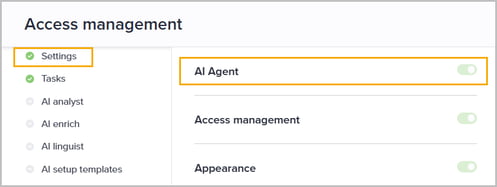
Please see AI agent settings for details about the configuration.
Grant user access
To allow a user to utilize the AI agent, the AI Agent permission must be granted:
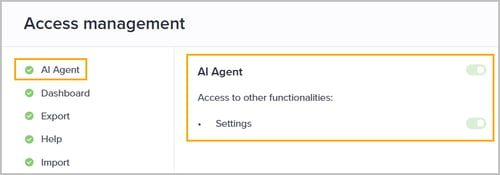
Note! We recommend not granting AI agent access to PPE users (typically suppliers) at this stage, as the agent may not fully respect the PPE setup.
Please see Using the AI agent for details on how to interact with the agent.
In addition, the Settings permission can be granted to allow the user to activate or deactivate AI tools that are made available for the organization. See Activate or deactivate AI tools for details.
AI agent settings
As an administrator, you control which LLM providers, models, and AI tools are available to users in your organization.
To access the configuration page, go to Settings | AI agent from the main navigation bar.
Trial or custom mode
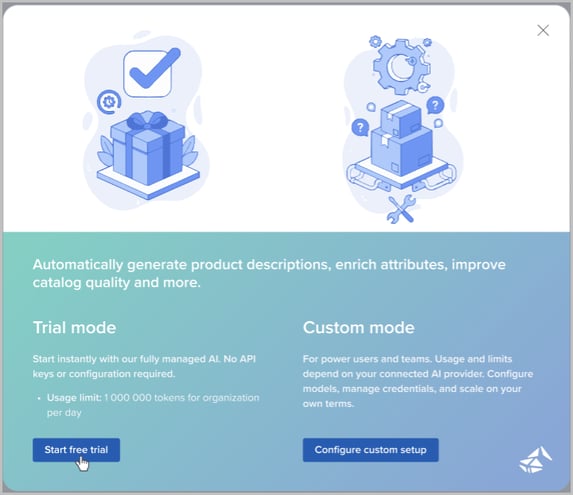
When initializing the AI agent settings for the first time, you are presented with the following pop-up where you can decide whether to start a free trial or to configure your own setup:
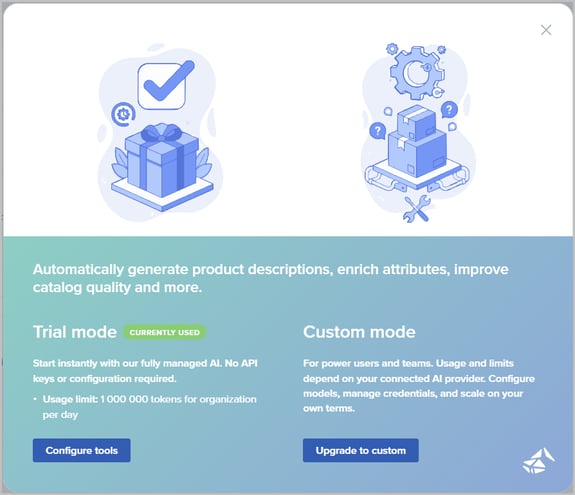
When already in trial mode, you can choose whether to configure the tools to be available for your organization in trial mode - or upgrade to custom mode:
When continuing, you will be presented with the configuration page. See the following sections for details.
LLM configuration
In custom mode, you can replace Bluestone PIM's managed configuration with your own LLM provider account (e.g. Anthropic, Google, OpenAI).
Note: This requires an existing agreement with an LLM provider and a valid API key.
Do the following:
-
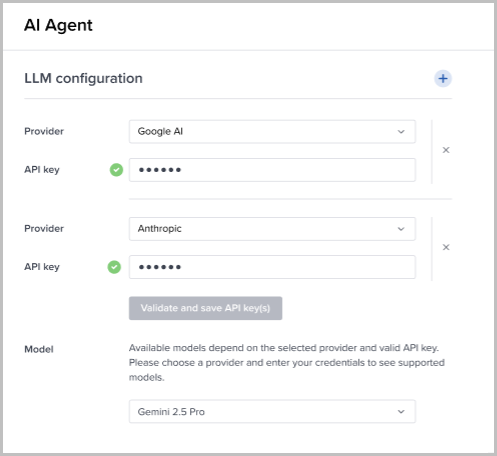
Go to Settings | AI agent. The following page is presented:
-
Select your Provider.
- Enter your API key.
Note: The key is encrypted at rest and will never be displayed in plain text after initial entry.
- If you have multiple LLM subscriptions, click the plus icon (add LLM configuration) at the top to add another Provider and API key.
-
Click Validate and save API key(s).
-
Valid keys are confirmed with a green checkmark - you can then proceed with configuration.
-
Invalid keys are highlighted with a red border - correct the entry before continuing.
-
- Select the Model to be used by the AI agent.
Tools configuration
Enabling or disabling AI tools at the organization level gives you centralized control over how AI is used across your team. Tools disabled at this level are unavailable to all users, regardless of their personal settings.
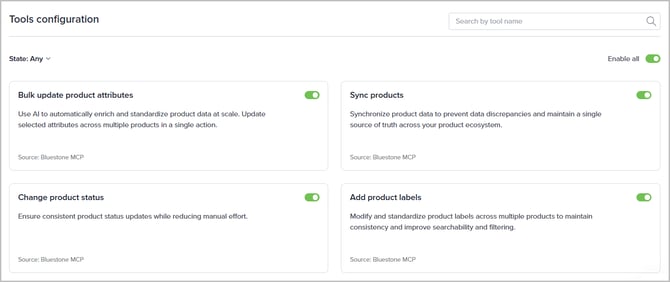
The MCP tools currently available are:
- Bulk update product attributes
- Sync products
- Change product status
- Add product labels
Do the following:
-
If you want to enable or disable all tools in one go, click the Enable all toggle in the upper right corner.
-
If you want to enable or disable a specific tool, click the toggle located within the relevant section.
Using the AI agent
This section covers how to interact with the AI agent - from asking your first question to performing actions directly within Bluestone PIM.
The AI agent appears in the lower right corner of your workspace:
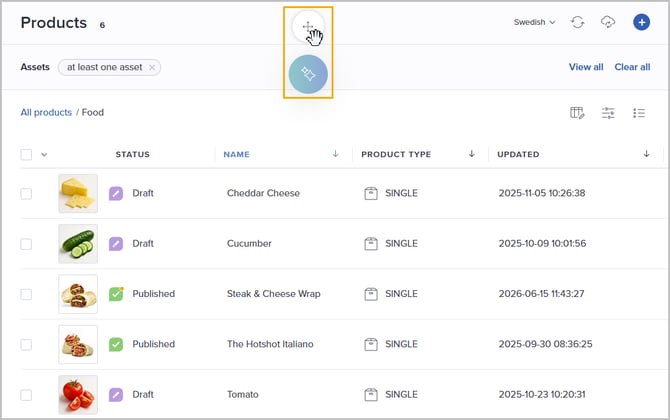
The agent can be repositioned anywhere within your workspace. Hover over it to reveal the drag handle, then drag it to your preferred position:
Please see the following sections for details on how to interact with the agent.
Note: If you don't want the possibility of using the AI agent, please contact your system administrator to get your permission removed.
Start a conversation
Click the agent to open the chat window:
The following functions are available:
- Chat
Click the input field to start or continue a chat thread. Go to the relevant section for hints and tips on how to ask questions or instruct the agent: - Start a new chat thread
Click New chat to start a fresh conversation. The current thread is moved to History. - Suggestions
Click the lightbulb icon for suggested instructions you can give to the agent. - History
Click the history button to view previous chat threads. Click a thread to reopen and continue it, or use the three-dot menu to Rename or Delete it: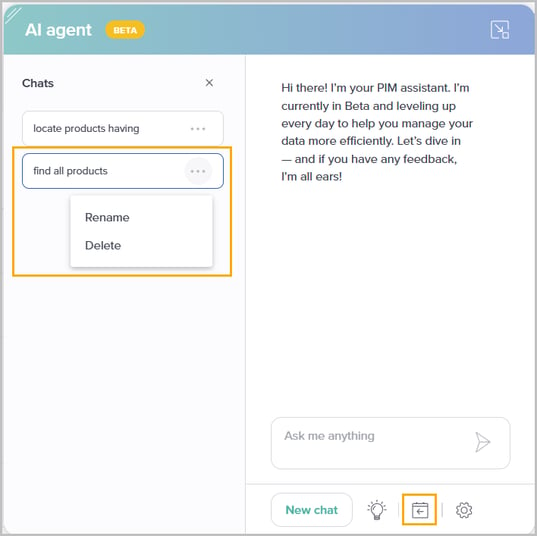
- Settings
If you have been granted access, you can control which AI tools are active. See Activate or deactivate AI tools for details. - Minimize
Click the arrow button in the upper right corner to minimize the chat window. The window can be restored at any time to resume an ongoing thread.
Find relevant products
The AI agent translates natural language into product queries and applies them directly to the product grid - no manual filtering needed. Simply describe what you're looking for, and the agent finds and loads the matching products for you.
Example instructions:
-
"Show me all draft products in the Electronics category"
-
"Which products are missing images?"
-
"Show products that have no value for the SEO Description attribute in the French context"
-
"Find all published products in the SALES catalog where the Season attribute is not set"
Get guidance
To truly support you, the AI agent also understands the platform itself. This guidance helps you navigate the platform and also equips the agent with the context it needs to perform tasks on your behalf.
Example questions:
-
"Where do I configure CLAs?"
-
"How do I run a bulk edit?"
-
"What are the AI agent's capabilities?"
Execute operations
The AI agent can take actions on your behalf - not just find and explain, but execute.
Ask it to apply changes across a set of products in bulk and it will create and run a background job, ask for your confirmation before executing any write operation, and report back when the job completes.
Multi-step tasks are also supported, where the output of one operation feeds into the next.
The following operations are available:
- Bulk update product attributes
- Sync products
- Change product status
- Add product labels
Example instructions:
-
"Assign the SEO Title attribute to all products in the SALES catalog"
-
"Sync all products in the SALES catalog"
-
"Set the publish state to Published for all filtered products"
- "Add the Discontinued label to all products in the WINTER category"
Activate or deactivate AI tools
As an individual user, you can - if granted permission to do so - activate or deactivate any AI tool that has been enabled for your organization, within the bounds of your permissions. The AI agent will only use the tools you have activated, giving you direct control over what actions it can perform on your behalf.
For a full overview of available tools, see Tools configuration.
To activate or deactivate AI tools:
- Click the Settings button in the AI agent window. The current model and list of available tools are displayed:
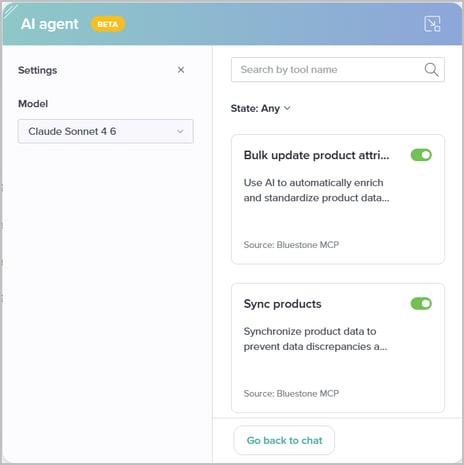
- Activate or deactivate a tool using the toggle in the relevant section.
- If you are using the Bluestone PIM subscription, your Daily token usage is shown below the model. A total of 1,000,000 tokens are available per organization per day.
Hover over the pie chart to see the percentage and number of tokens remaining: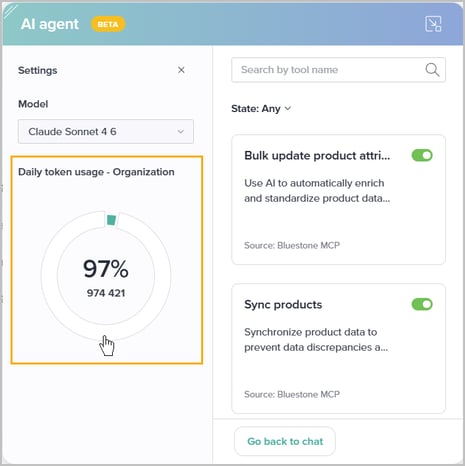
- Click Go back to chat when you are done.
Coming next
Upcoming versions of the AI agent will add support for creating and enriching products. Examples of instructions that will be supported:
- "Create new products and populate their attribute values"
-
"Generate attribute content using AI for a set of products"
-
"Translate product descriptions to other language contexts"
-
Combined:
"Find products with a complete English description but no German translation, translate them, and publish once done"