![Bluestone_PIM_white_logo_RBB-3.png]](https://help.bluestonepim.com/hs-fs/hubfs/Bluestone_PIM_white_logo_RBB-3.png?height=50&name=Bluestone_PIM_white_logo_RBB-3.png)
Bluestone PIM is introducing support for a three-level product hierarchy, introducing the Family as a new top-level container above the existing Group and Variant levels. This is an important update for organisations managing complex product lines.
Note! To protect existing data structures and workflows, this feature is disabled by default. Once your organization completes all necessary technical preparations, contact Bluestone support to request activation.
Introduction
Bluestone PIM now supports a three-level product hierarchy, introducing the Family as a new top-level container above the existing Group and Variant levels.
The existing two-level structure (Group → Variant) works well for many catalogues, and if it meets your needs, no changes are required — your existing setup will continue to work as before. The Family level is optional and only relevant when your products have multiple dimensions that the two-level structure cannot represent cleanly.
Without a Family level, managing products with multiple layers of variation typically means either duplicating shared data across many Groups, or working with a single Group containing an unmanageable number of Variants. The Family level solves both problems by providing a natural grouping layer above the Groups, reducing redundant data entry, improving consistency, and making it easier to navigate and manage large product sets.
Multi-level hierarchy support is also becoming a standard market expectation for handling complex product data effectively.-png-1.png?width=670&height=710&name=Product%20Hierarchy%20Diagram-selection%20(3)-png-1.png)
Bluestone PIM now supports the following three-level product hierarchy:
 Family →
  Group →
  Variant
The following rules apply:
-
A Family contains one or more Groups. It has no parent of its own.
-
A Group contains Variants. It can belong to one Family, or to none — a Group without a Family works exactly as it always has.
-
A Variant belongs to exactly one Group. Nothing about Variants changes with this feature.
-
A Single product has no place in the hierarchy, but can be converted into a Family or a Group.
-
A Bundle is unaffected and sits outside this hierarchy entirely.
The Group and Variant levels are unchanged from what you already know. Everything new is the Family level sitting on top.
When to use the Family level
The three-level hierarchy is particularly suited to organisations managing products with multiple layers of variation:
Fashion and apparel
A dress available in multiple colours and sizes is a classic example. Each colour — black, blue, pink — is a separate Group, and each Group holds its own size Variants (S, M, L, XL). The Family "Summer Cotton Dress" sits above all the colour Groups, holding shared data such as material, care instructions, and brand, which is inherited automatically by all Groups and their Variants.
Furniture
A sofa model available in different upholstery options (leather, fabric, velvet) and sizes within each option maps naturally to a three-level structure. The sofa model is the Family, each upholstery option is a Group, and individual size configurations are Variants.
Electronics
A laptop model offered in different colours or casing materials, each with its own storage and memory configurations, benefits from the same structure. Shared specifications — processor, display, connectivity — are managed at the Family level and inherited downward.
Industrial and technical products
Product lines where a base product exists in different configurations or materials, each with further sub-variants defined by size or specification, follow the same pattern.
The key question
If you find yourself asking "these Groups all come from the same product concept — how do I connect them and share data between them?", the Family level is likely the right answer.
Viewing and filtering Families
The three-level hierarchy is reflected across several areas of the product interface.
Product grid
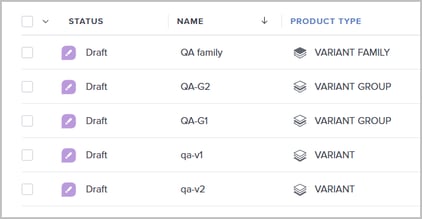
The Product type column displays the level of each product — Variant Family, Variant Group, Variant, Single, or Bundle — each with a distinct icon, making it easy to identify the level of a product at a glance.
Product type filter
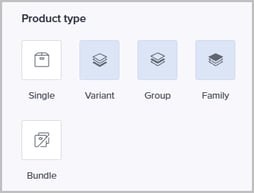
The product type filter gains a new Family option. Filters are ordered as follows:
Variant family filter
A dedicated Variant family filter allows you to narrow down products based on the number of variant groups they contain.
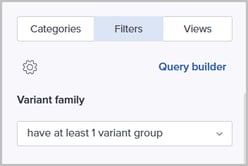
The available options are:
-
Don't filter
-
Have at least 1 variant group
-
Have more variant groups than (specify a number)
-
Have fewer variant groups than (specify a number)
-
Have no variant groups
This filter is also available as a term in the Query builder, alongside the equivalent term for variants.
Product overview panel
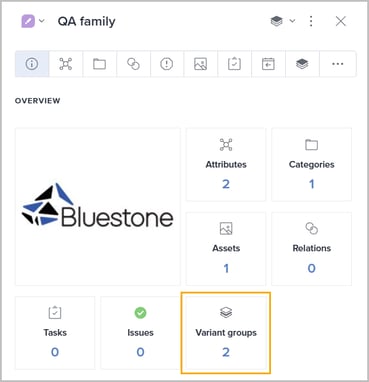
For a Family, the overview panel displays a widget showing the number of Groups it contains - in the same location where a Group displays its variant count.
Creating a Family
There are two ways to create a Family: from existing Groups, or as an empty family.
From existing Groups
The recommended approach is to create a family from existing groups. In the product grid, select the groups that belong together and choose Create variant family from the actions menu.
Note: This action requires all selected products to be variant groups with no existing family association, and more than one group must be selected.
When creating a family from existing groups, the following page is presented:
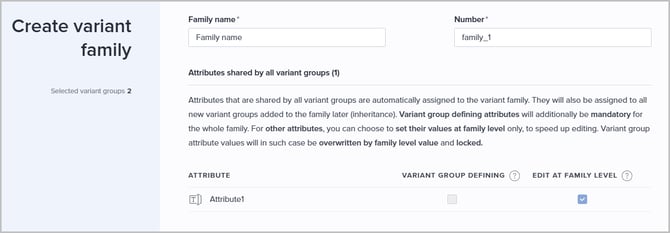
Specify the Family name and Number.
In the Attributes shared by all variant groups section, the attributes that all selected groups have in common are listed. These are automatically assigned to the new family, and will also be assigned to all new groups added to the family later (inheritance).
For each shared attribute you can configure:
-
Variant group defining
The attribute will be mandatory for the whole family. -
Edit at family level
Attribute values will be set at family level only, overwriting and locking values at the group level.
As an empty family
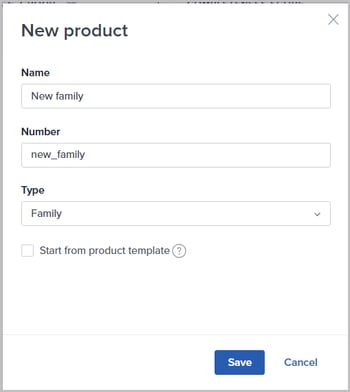
A family can also be created without any groups. In the New product dialog, select Family as Type. This creates an empty family that groups can be added to later.
Working with a Family
Open a family and go to its Variant family tab. The section lists all groups, with controls to Show in grid, toggle the view, and Add variant group. Each group displays its name, number, and actions to copy the product name or remove it from the family. When no groups have been added yet, an Add variant groups button is shown instead.
Two views: Comfortable and Compact
- Comfortable view
Shows each group with an editable attribute/value table for the family's defining attributes. Use this view for editing. - Compact view
Shows each group on a single line with read-only attribute values and a drag handle for reordering.
Adding groups
The Add variant group action opens a selection dialog showing only available variant groups. Groups that already belong to another family are hidden - to move a group, remove it from its current family first. By default, up to 20 groups can belong to a family.
Removing a group
A group can be removed from the list of groups on family level or from the group itself. A confirmation dialog is shown before the action is completed. The group retains its type, variants, and data, and simply becomes a standalone variant group again.
Reordering groups
Switch to Compact view and drag groups to their new position using the drag handle. The order is reflected in the API and downstream channels.
What a variant group shows
When a group belongs to a family, a card above its variants list shows a link to the family and the number of sibling groups.
What a variant shows
A variant's Variant tab shows its full ancestry - links to both its Family and Variant group - along with its sibling variants.
Attribute inheritance
Attribute inheritance at the Family level works the same way as inheritance from a group down to its variants - the same mechanism, applied one level higher.
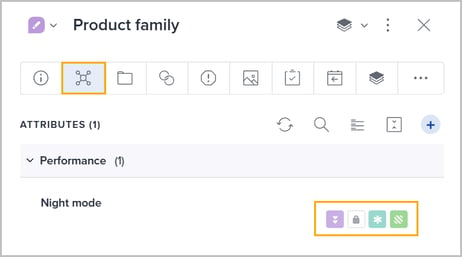
An attribute on a family can be inherited by its groups using four settings:
-
 Inheritance
When activated, the attribute and its value will be inherited by the groups. -
 Lock
Lock
When activated, the Groups must match the value set on Family level, and cannot be changed. -
 Mandatory
When activated, the Groups must have a value for this attribute. A locked attribute is automatically set as mandatory.  Group defining
When activated, this attribute is used to distinguish Groups from one another - meaning it will hold a different value for each Group in the Family. Its values are displayed for each Group in the Variant family tab.
Note: Inheritance is a prerequisite for the other three settings. Turning inheritance off automatically disables Lock, Mandatory and Group defining.
Confirmation dialogs
Each inheritance action opens a confirmation dialog, as the groups may already hold their own values. In each case, you are asked to decide what to do with existing values:
-
Keep existing values, only update empty ones
-
Override existing values (preselected)
The actions and their dialogs are:
-
Propagate (inherit) attribute — propagates the attribute to all groups in the family.
-
Lock attribute value — requires all groups to match the family's value.
-
Update attribute value — updates the attribute value across the family's groups.
-
Unlock attribute value — removes the lock from the attribute.
The same dialogs appear at the group level, where "variants in this group" replaces "groups in this family". The mechanism is identical at both levels.
The VLA badge
On a group, any attribute inherited from its family is marked with a VLA badge:
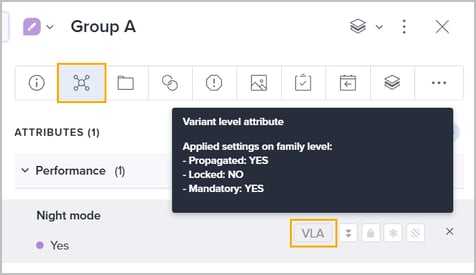
Hovering over the badge shows which settings the family has applied to that attribute:
-
Propagated: YES / NO
-
Locked: YES / NO
-
Mandatory: YES / NO
This allows group editors to see exactly which constraints have been imposed by the family, without leaving the group.
Inheritance levels
Inheritance is defined between adjacent levels only - from family to groups, and from groups to variants - each with its own independent settings.
See also the Attributes chapter in the Product details panel article.
Product issues, completeness and the sync report
Completeness requirements
Family is available as a product type in completeness requirements, alongside Single, Variant, Group, and Bundle. A family's completeness score and requirement status are displayed in the same way as for any other product type.
Two additional rules apply:
- Defining attributes are exempt
An "attribute has value" requirement is not applied when the attribute is marked as defining, preventing duplicate enforcement. - Changes cascade
When a family changes, the completeness validations of its groups are recalculated, just as a group change recalculates its variants.
Product issues
Inherited attribute problems appear on the Product issues tab under Other validations, in three groups: Incorrect attribute values, Missing attribute values, and Missing attributes. Rows caused by an inherited attribute carry the VLA badge and reference the parent product by name, for example:
-
"Products that belong to {parent name} must have this attribute value assigned."
-
"Products that belong to {parent name} must have this attribute value set to {value}."
If the user has no access to the parent product, the message falls back to referencing it by ID and advises contacting the system administrator.
The sync report
The Product validation issues report includes three product attribute rows with tooltips identifying inherited attributes as a potential cause:
-
Missing attributes — includes CLA and VLA attributes.
-
Missing attribute values — includes attributes with the CLA or VLA 'Mandatory' flag.
-
Incorrect attribute values — includes attributes with the CLA or VLA 'Locked' flag.
Note: A locked family attribute whose value differs at the group level results in an Incorrect attribute values sync error.
Import and export
Import
The Family level is handled in three places during import:
-
Mapping
A column can be assigned the type Variant groups. Since a Family references multiple Groups, the column is marked as Column contains multiple products, with a configurable product separator (semicolon by default). A Family row would read as: Group 1; Group 2. -
Progress
The import now runs through an additional stage. Variant families is processed as its own stage, between Products and Variant groups:
Products → Variant families → Variant groups → Variants → Bundles → Categories → Attribute definitions → Relation definitions → Relations between products -
Summary
The Import completed screen breaks down new products by type in a chart, with the legend showing: Families, Groups, Variants, Bundles, Singles.
Export
Three new columns are available at the Family level, in addition to the existing Variant group columns:
-
Variant family name — the name of the Family a Variant group belongs to.
-
Variant family number — the number of the Family a Variant group belongs to.
-
Variant groups — the Groups belonging to a Family.
The existing Variant group name and Variant group number columns are unchanged.
Personal Product Editor (PPE)
The PPE setup wizard now includes a dedicated Variant groups step, giving administrators control over what PPE users can do with Variant groups — in the same way the existing Variants step controls Variants. The wizard now runs through the following steps:
Access → General settings → Variant groups → Variants
Within the Variant groups step, administrators can configure:
- Which attributes the PPE user can edit for Variant groups.
- Up to 5 attributes to display as columns in the Variant groups table on a Family product page.
In the PPE, opening a Family product displays a Variant groups (n) table — in the same location where a Variant group would show its Variants — with the configured attributes as columns and a toggle to apply filtering criteria from the product list. The product page also shows the product type as Family.
Navigating the full product structure
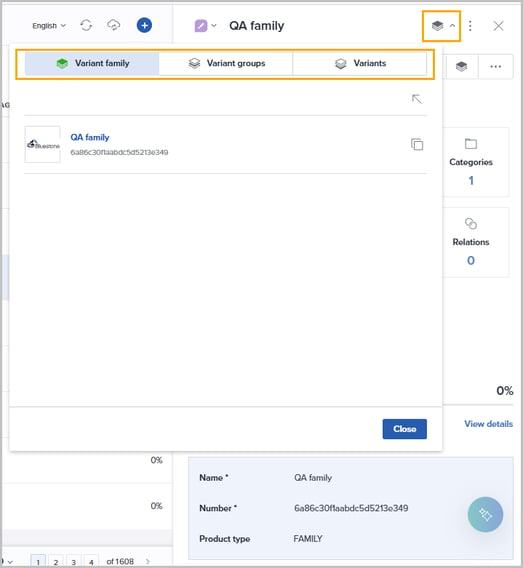
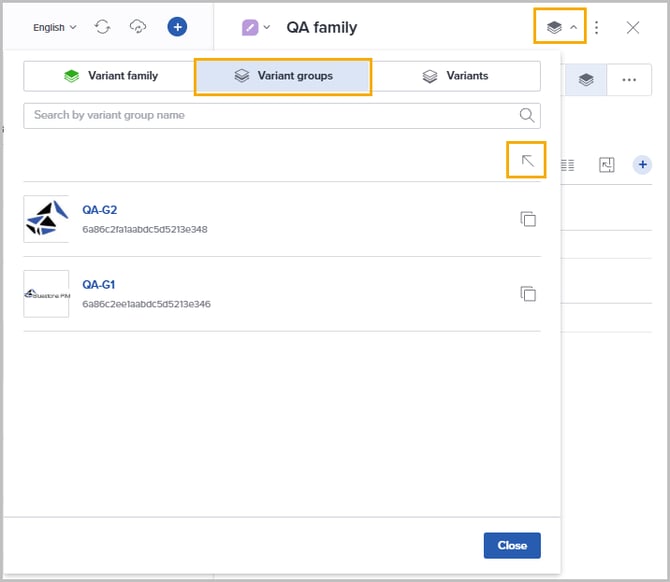
The Product structure popover, accessible from the header in the product details panel, gives you a complete view of the hierarchy around the product you have open. It has three tabs — Variant family, Variant groups, and Variants — with the tab matching the open product's level highlighted automatically.
A few things worth knowing:
-
The Variant family tab only appears when the open product belongs to a family.
-
A search field is available in the Variant groups and Variants tabs. It lets you filter by name or number, starting from two characters.
-
On the Variants tab, variants are grouped under their Variant group, with the group name and variant count shown as a section heading.
-
Groups and variants load ten at a time, with a Load more button to fetch additional results.
-
Each section has a Show in grid action that opens the product grid filtered to that section.
Technical information
For API documentation and technical details, please see:
Work with product families, groups, and variants
Migrate product clients for FAMILY and response changes